Jump to a section
01
Add your characters
Your legion is every character on one world. Add them by name and the rankings fill in the rest.
Hit Add Character.
It's the first button above your legion, or the big one in the middle if you haven't added anyone yet.Pick NA or EU, type a name, press Find Character.
LegionForge looks the character up on the official rankings and pulls in their level, EXP, job, world and avatar.Check it's the right one, then Confirm & Add.
Adding a whole roster? Tick Keep this window open and the dialog stays up for the next name.
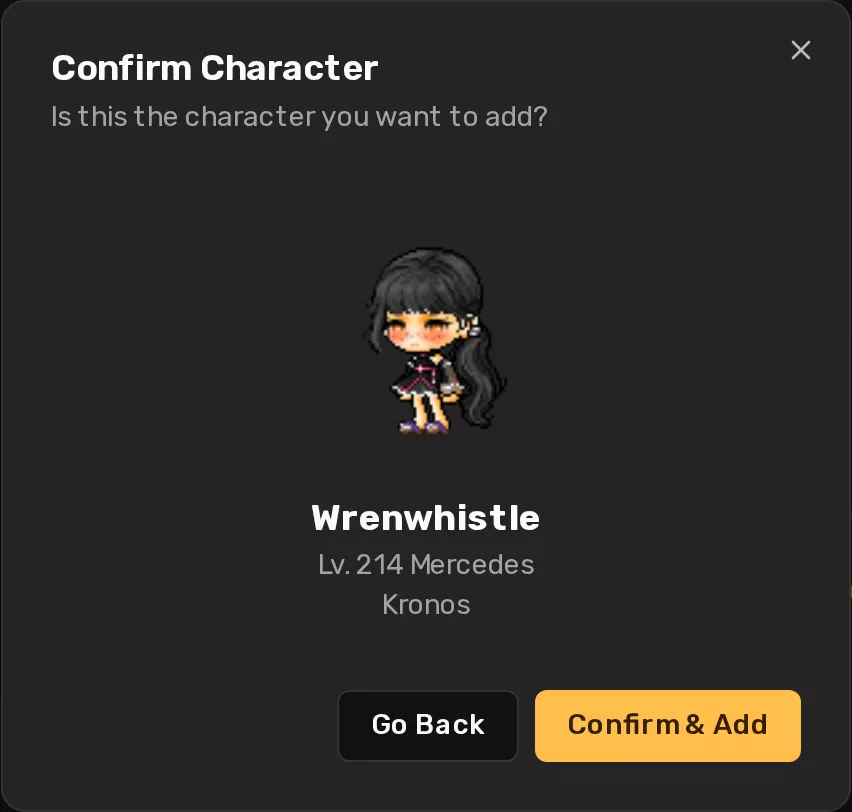
Your first character sets the region and world for the whole legion, the same as in game. After that, the NA/EU toggle is locked, and a character from a different world is turned away with a note saying which world your legion is on.
02
Read your legion
The card at the top is your legion at a glance. The table under it is everyone in it.
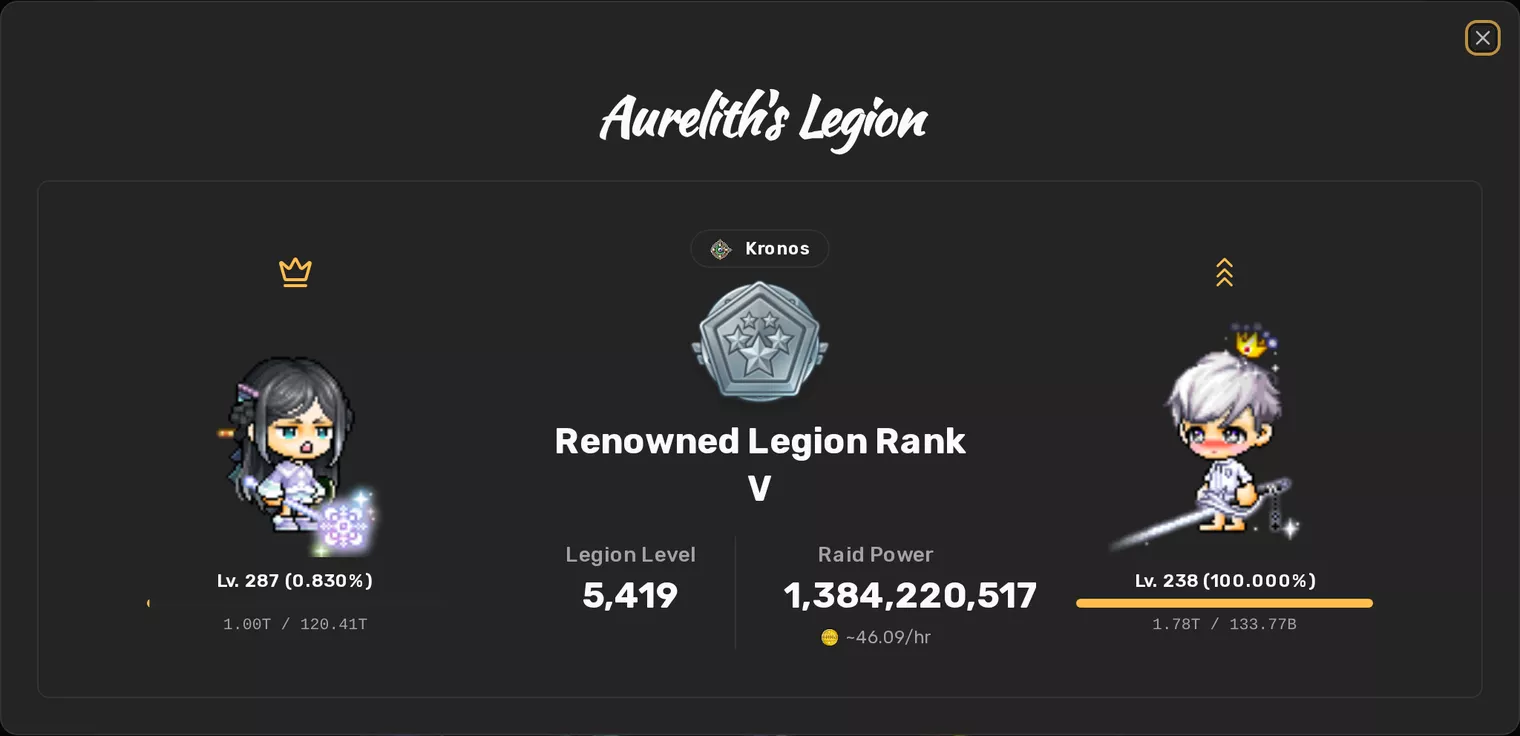
LegionForge works out your main by itself: it's your highest-level character that the legion rankings know about. The main's legion level and raid power come straight from Nexon, so they match what you see in game.
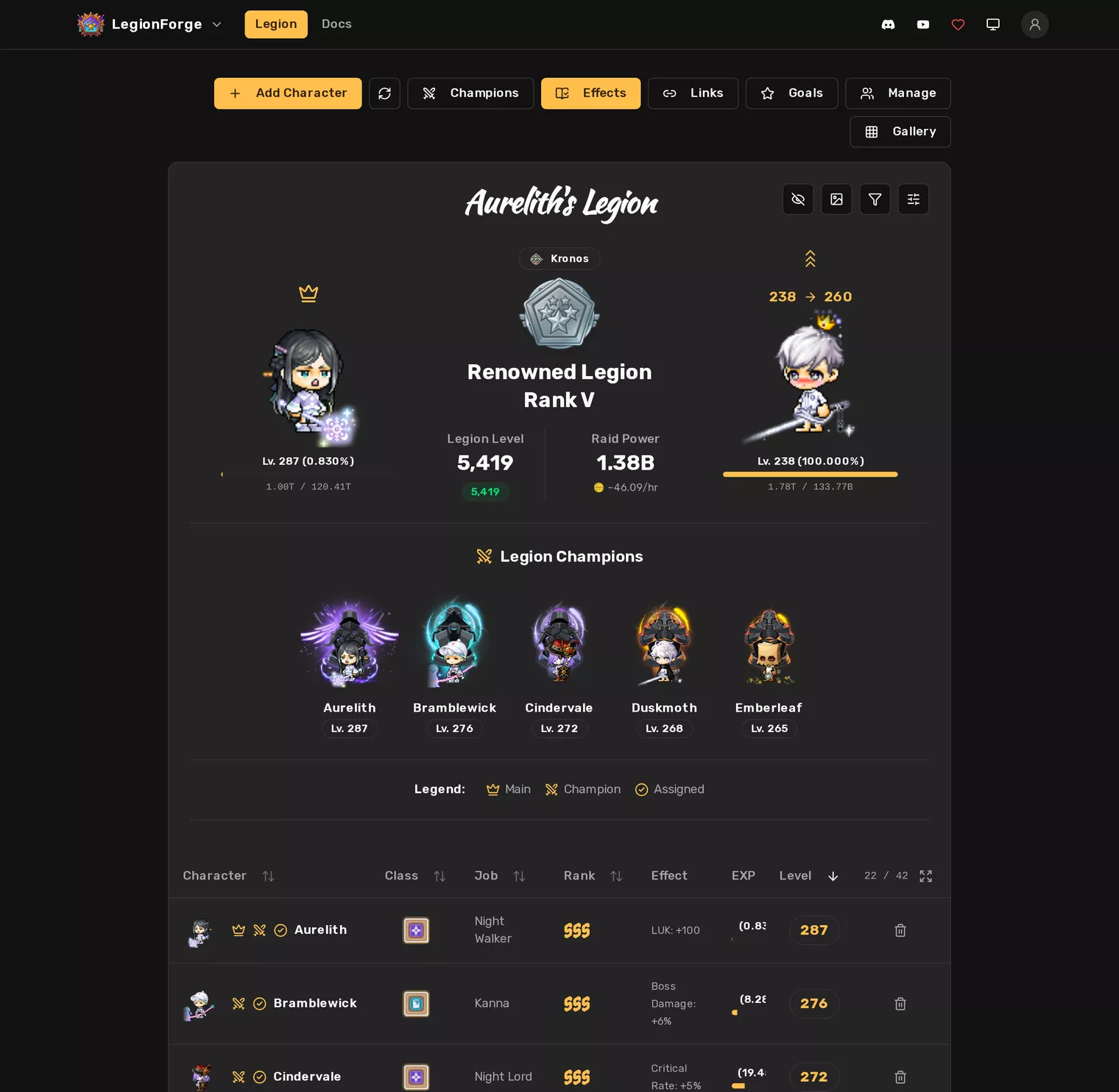
- Rank emblem
- Your legion rank, from Nameless I up to Supreme. It also sets how many characters you can place on your board.
- Legion Level
- The official number from the rankings. The small badge under it is the total of your top 42 characters here. Green means they match; amber means you're missing a character or due a refresh. Hover it for which.
- Raid Power
- Click it to switch between short (1.23B) and full numbers. The coin line under it estimates how many Legion Coins you earn per hour.
- Main
- Shown on the left of the card with their EXP bar.
- In Progress
- Shown on the right: the character you're levelling right now, with their goal level. Pick one in Manage, or LegionForge picks your highest character still under level 250.
- Legion Champions
- Your champions sit in a row under the card, with their rank flag.
The character table
Click a column header to sort by it: once for ascending, again for descending, a third time to go back to your own order. The buttons on the top right of the card:
- Eye
- Incognito mode. Hides every character name, for screenshots and streams.
- Picture
- Makes a badge of your legion to share. See Gallery and badge.
- Filter
- Narrow the table by class, level range, or only the characters assigned to your board.
- Sliders
- Show or hide the Class, Job, Rank and Effect columns.
Click a character's EXP to switch between a percentage and the raw number. To remove a character, use the bin at the end of their row. Manage is where you change everything else.
03
Manage your board
Manage is one table for everything you decide about your legion. Nothing is saved until you hit Save Changes.
Open it with Manage above your legion. The search box at the top finds a character by name, which helps once your roster gets long.
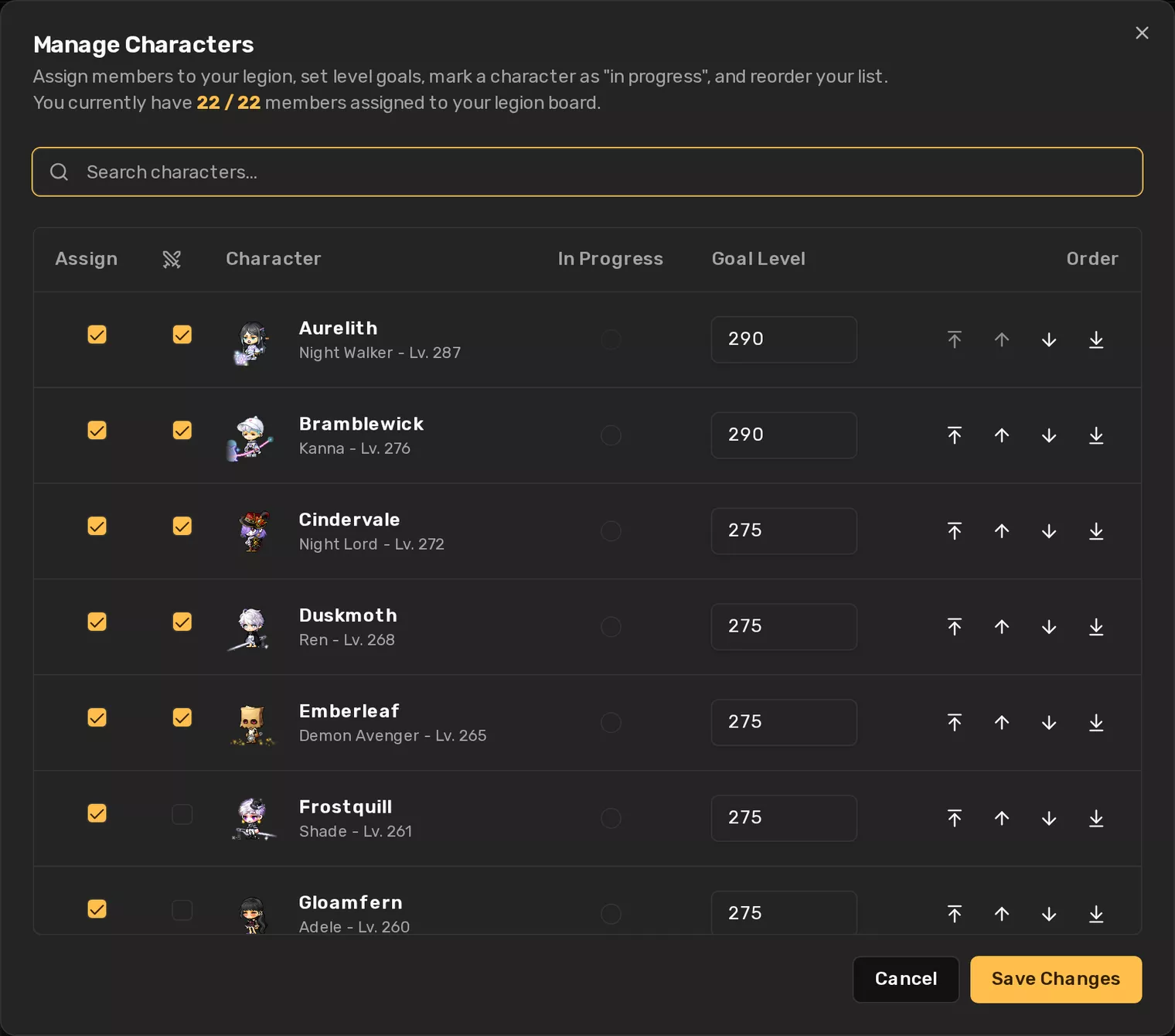
- Assign
- Places a character on your legion board, which is what turns on their member effect. Your rank decides how many you can place (the count is at the top of the dialog), and only one character per job counts, same as in game.
- Crossed swords
- Makes a character a Legion Champion. You can pick up to six. Set their ranks in Champions.
- In Progress
- The character you're levelling now. They get the spot on the right of your legion card. Your main can't be picked.
- Goal Level
- The level you're aiming for on that character. It starts at the next milestone (250, 260, 275, 290 or 300); change it to whatever you're working toward.
- Order
- The arrows move a character up or down one place, or straight to the top or bottom. This is the order the table and gallery use when nothing is sorted.
04
Legion Champions
Rank up your champions and LegionForge adds up the insignia bonus for you.
Pick up to six champions in Manage.
Tick the crossed swords next to each one and save.Open Champions and click a flag to set each one's rank.
Ranks go C, B, A, S, SS, SSS. Hover a flag to see what it's worth and which solo clear earns it in game.Hit Save Ranks.
The Champion Insignia Effect panel totals up the stats from every ranked champion.
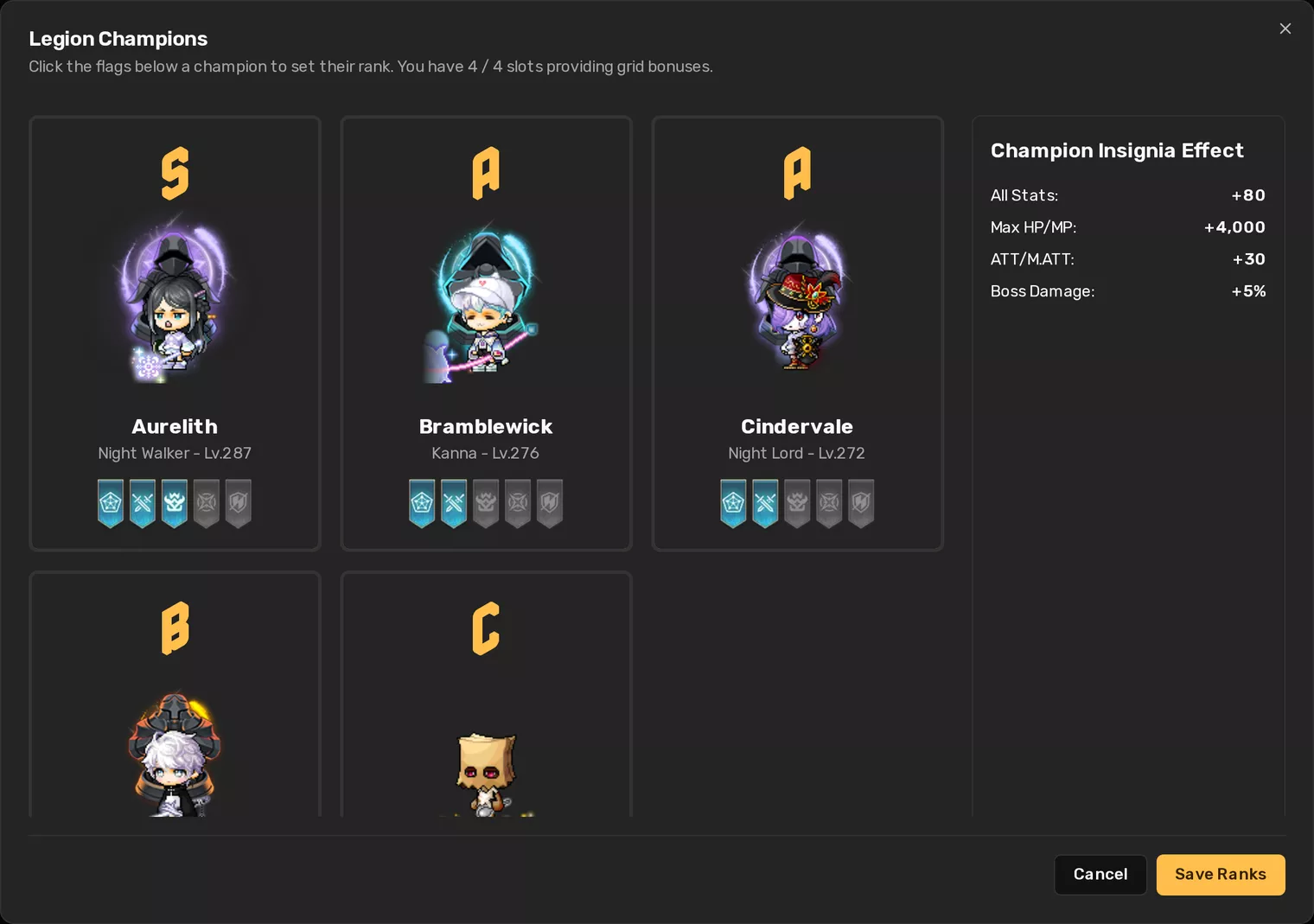
You start with two slots that give grid bonuses. More open up as your champions rank up, the same way they do in game. The top of the dialog shows how many you have, and LegionForge stops you from ranking more champions than your slots allow.
05
Effects and goals
See what your board gives you today, and what to level next to get more.
Effects opens with a Recommendation: the one character whose next few levels get you the most, whether that's a new link skill level or the next rank of their member effect. Under it, Active Legion Bonuses adds up the effects of everyone you've assigned, so you see one total per stat instead of a list of cards.
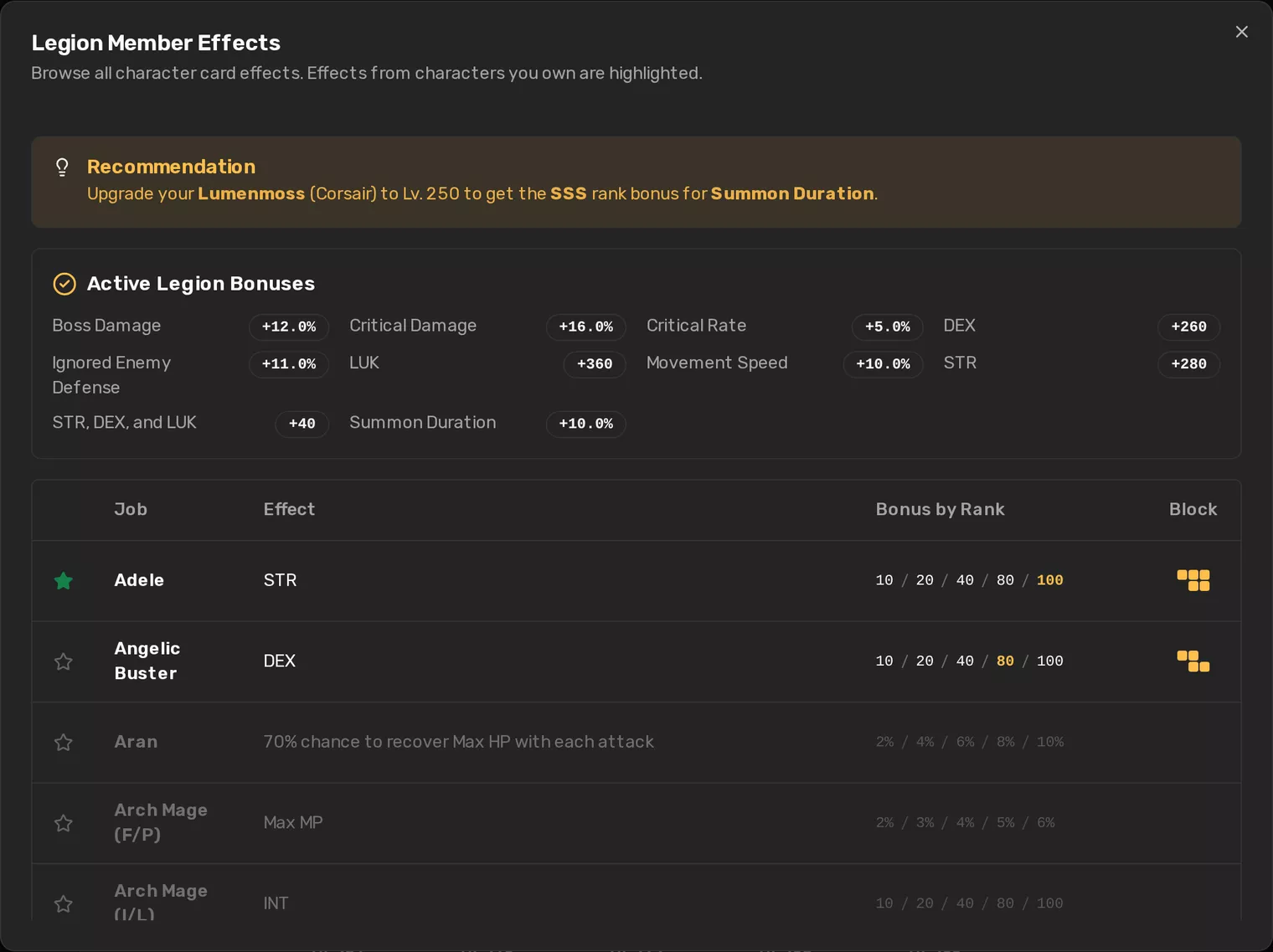
The full table below lists every job's member effect and what it gives at each rank. Effects from characters you own are highlighted. On a phone these are two tabs, Summary and All Effects.
Set goals
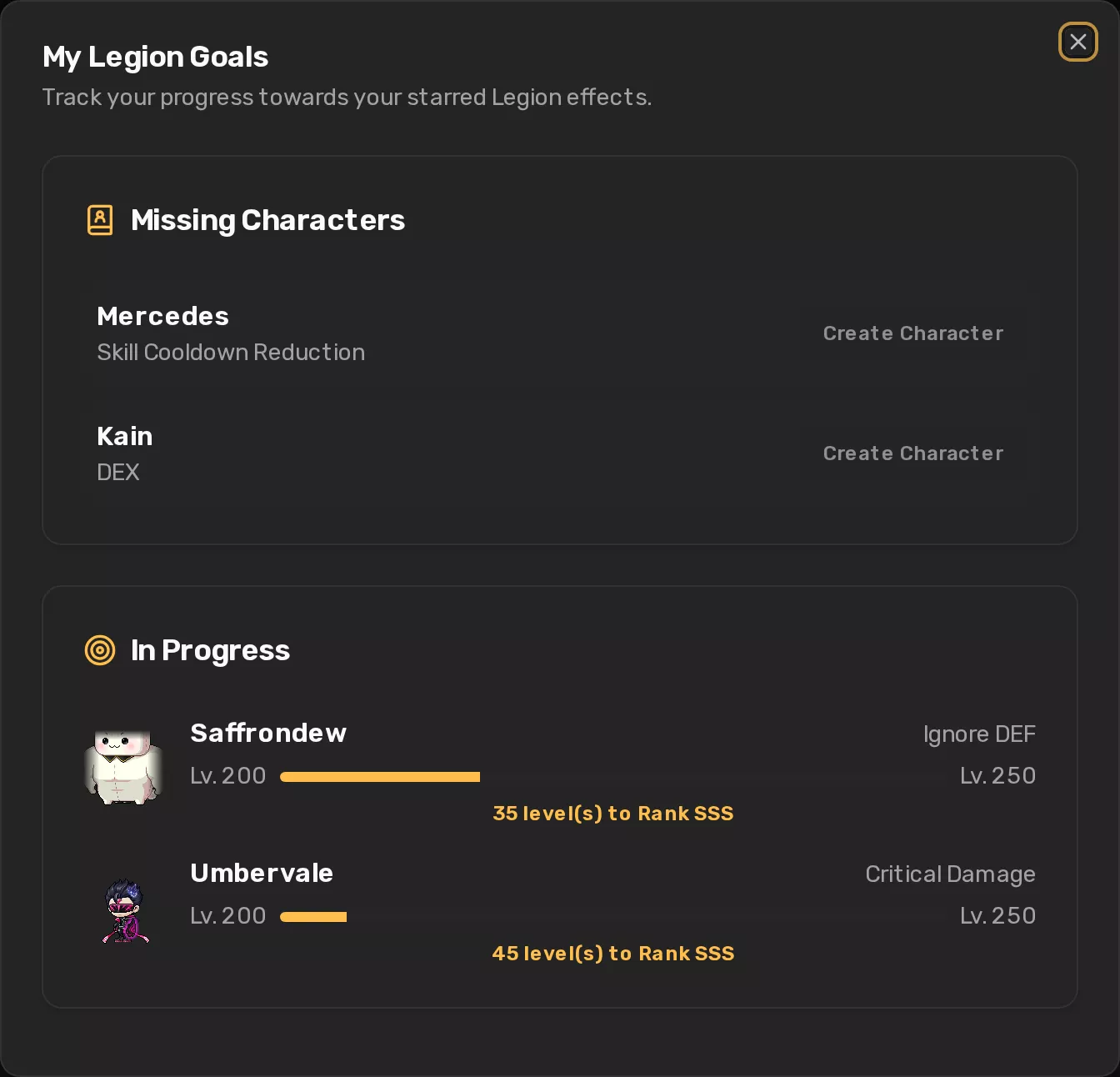
Star an effect you want in the Effects table.
Any job, whether you have that character or not.Open Goals to track them.
Effects you have a character for show how far that character is from the next rank. The rest are listed as characters you still need to make.
06
Link skills
Every link skill, and the level yours is at, worked out from your characters.
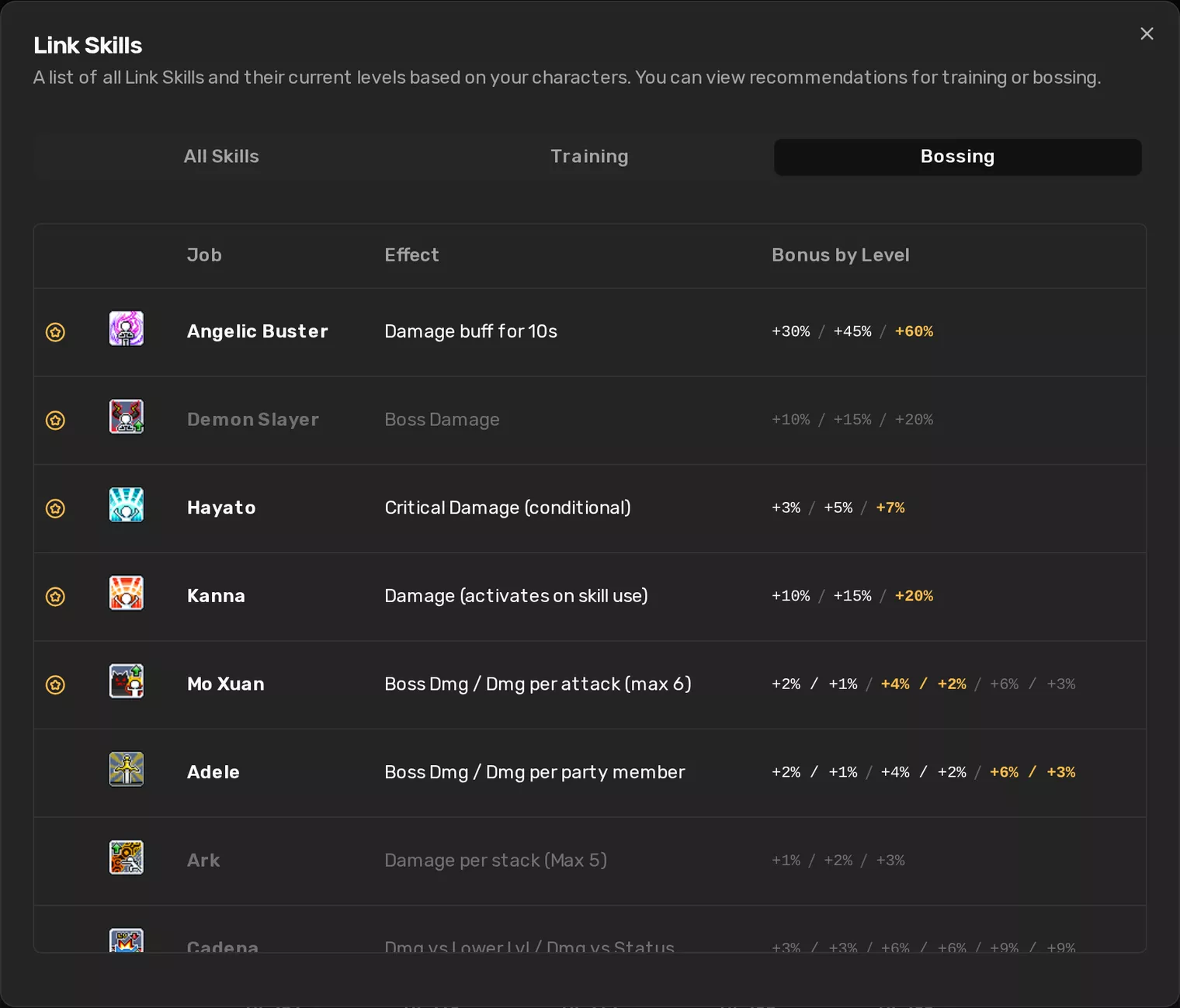
Links lists every link skill with its bonus at each level. Where you have characters that give a link, LegionForge works out the level you have and highlights it. Links you don't have yet are greyed out.
Not sure which links matter? The Training and Bossing tabs narrow the list to the ones worth equipping for each, best first. The must-haves are marked with a star.
07
Gallery and badge
Two ways to show your legion off.
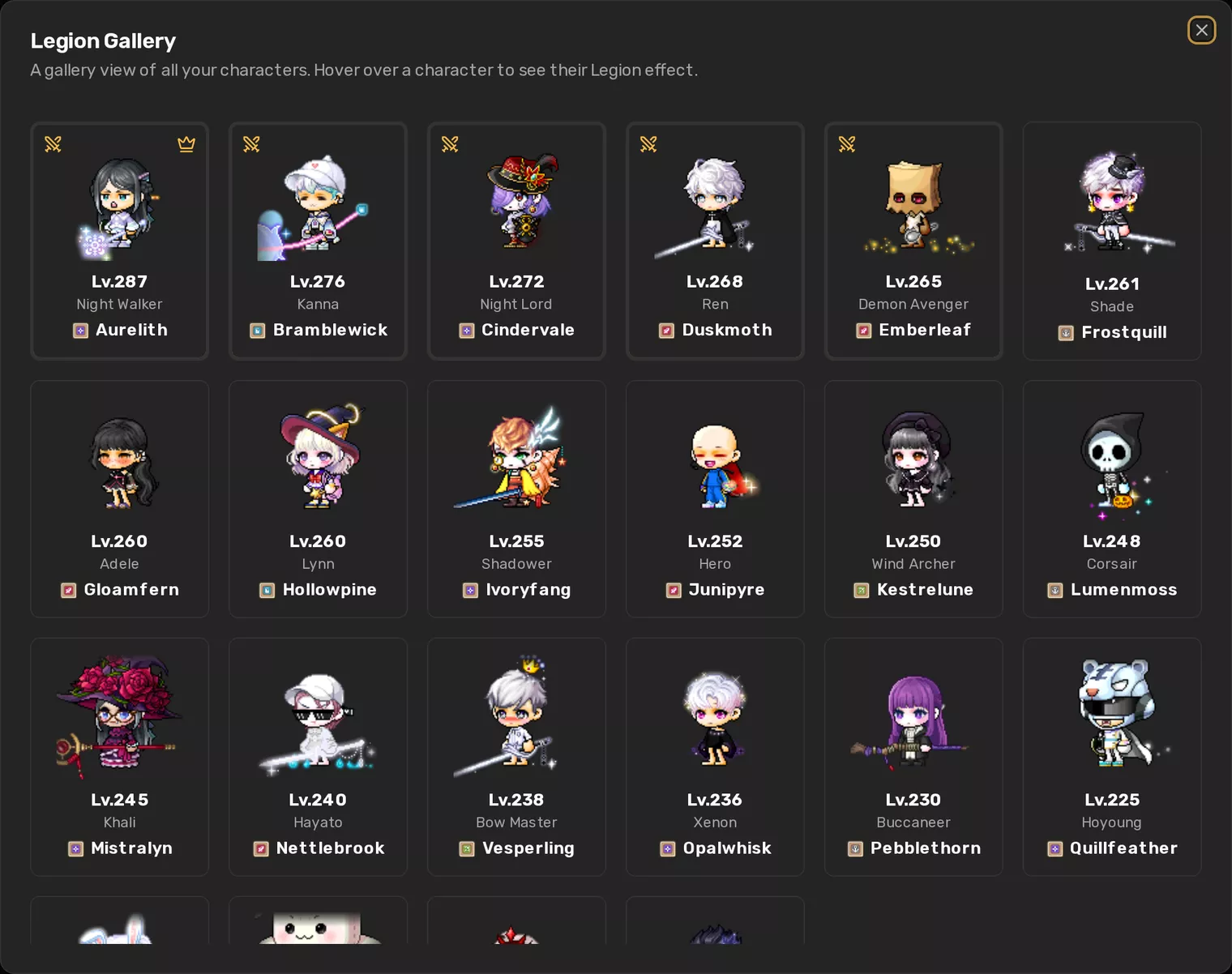
Gallery lays your whole roster out as cards, a page at a time, in your Manage order. Hover a card to see the member effect that character gives. Your main and your champions are marked.
The badge (the picture button on your legion card) is one tidy panel with your main, world, rank, legion level, raid power and the character you're levelling, ready to screenshot for Discord. Turn on incognito first if you'd rather your main's name didn't show; the badge then says “My Legion”.
08
Keep it up to date
Nexon updates the rankings once a day. LegionForge only asks for what's changed.
The rankings refresh daily at 4 PM UTC. Levels you gained since then won't show anywhere, LegionForge included, until the next update.
- Refresh
- The circular arrows beside Add Character. Re-fetches only the characters that haven't been updated since the last ranking update, so it's quick and you can press it whenever. It counts up as it goes.
- Hard refresh
- In the account panel, under Data. Re-fetches every character whether it's due or not. Use it if something looks wrong. It has a 30-minute cooldown.
- Coming back
- Switch back to a LegionForge tab after an update and your legion level and raid power refresh by themselves.
09
Accounts and sync
No account needed. Sign in when you want your legion on more than one device.
As a guest, your legion lives in this browser only. Nothing is sent anywhere except the name lookups to the rankings. That's fine on one computer, but clearing your browser data clears your legion too, so export a backup now and then.
Sign in with your xForge account (the same one BossForge uses) from the avatar on the top right, and your legion syncs to the account. Edit it on your PC and it's there on your phone.
The first time you sign in
- Import your legion?
- This browser has a legion and your account doesn't. Import copies it up; Start fresh leaves it behind.
- Choose your legion data
- Both have one. Keep account data, or replace it with this browser's copy.
Either way, you can download the other copy first from the links under the buttons, so nothing is lost by picking the wrong one.
Signing out
Once you're signed in, your account is the copy that counts. Signing out clears this browser's copy, and LegionForge asks whether to sign back in or Continue as guest with a fresh legion.
10
Back up and share
Everything is under Data in the account panel. Click your avatar on the top right to open it.
- Export data
- Downloads your characters, goals and theme as a JSON file.
- Import data
- Upload that file, or paste its contents. This replaces the legion in this browser.
- Share legion
- Copies a link with your whole legion packed into it. No account needed on either end.
Opening a shared link
Open the link.
You see their legion in Preview Mode. Your own legion isn't touched.Look around, then pick one.
Back to My Legion drops the preview. Import makes it yours, replacing your current legion.
Handy for moving to a new device without an account, or for showing a friend how your board is set up.
11
Incognito and screensaver
Incognito mode
The eye button on your legion card hides every character name, everywhere in LegionForge, including the badge. Use it before you stream or post a screenshot. It stays on until you turn it off.
Screensaver
The monitor button in the top bar turns a spare screen into a legion display: your characters, a big clock and the date, and the weather where you are. Press F11 (or Ctrl ⌘ F on a Mac) to go full screen.
Under Screensaver in the account panel you can turn the weather and location on or off, and set the location by typing a city or with Use current location.
12
Questions
I just levelled up. Why hasn't LegionForge noticed?
It reads the official rankings, which Nexon updates once a day at 4 PM UTC. Hit Refresh after that and the new level comes in.
Why is my legion level badge amber?
The levels of your top 42 characters here don't add up to the legion level on the rankings. Usually a character is missing, or one is due a refresh. Hover the badge to see which way it's off.
Why can't I add a character from another world?
A legion is one world, same as in game. Your first character sets it. To track a different world, export a backup, remove your characters and start again.
LegionForge picked the wrong main.
Your main is the highest-level character the legion rankings return data for. If that's not the one you expect, check it's been refreshed since its last level up.
Do I need an account?
No. Without one, your legion stays in this browser. Sign in with an xForge account to have it on every device.
Will importing a shared link wipe my legion?
Yes, Import replaces it. Export a backup first if you might want yours back.
Ready when you are
Add a character. The rest follows.